Tuesday, May 29, 2012

Magento: Best Selling Product Lists on Home Page


Bestseller or best selling product is one of the features people tend to ask for when it comes to Magento™.
There are multiple ways to implement this feature.
In this example, I’m not using controller or model directories at all; I’m going to show you how to implement this feature using only one file: the View.

Basically, what you need to do is to create the directory inside your template directory and place thebestseller.phtml file in it. In my example, I’m using the custom-created directory /inchoo. All of the screenshots provided here are based on that directory structure.
Adding this feature to your store is a matter of two simple steps:
  • copy bestseller-phtml file to your directory
  • display the block on home page
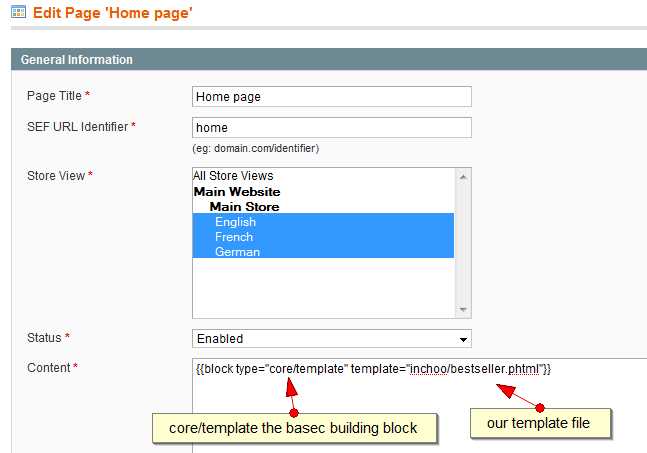
To add a block to a home page, you simply log into the Magento, CMS > Manage Pages > Home. Then add the following to the content area:
{{block type=”core/template” template=”inchoo/bestseller.phtml”}}
Notice the type attribute. I used core/template which means you can place this code anywhere in your site and it will work. Code does not inherit any collection objects from controllers since it has none. All that is necessary for the bestseller.phtml to work is defined in that single file.
One more thing: If you study the code in bestseller.phtml file you will see, at the very top of the file, the part that says: $this->show_total.
If I were to write
{{block type=”core/template” show_total=”12″ template=”inchoo/bestseller.phtml”}}
in my home page, then $this would be assigned property show_total with a value of 12.
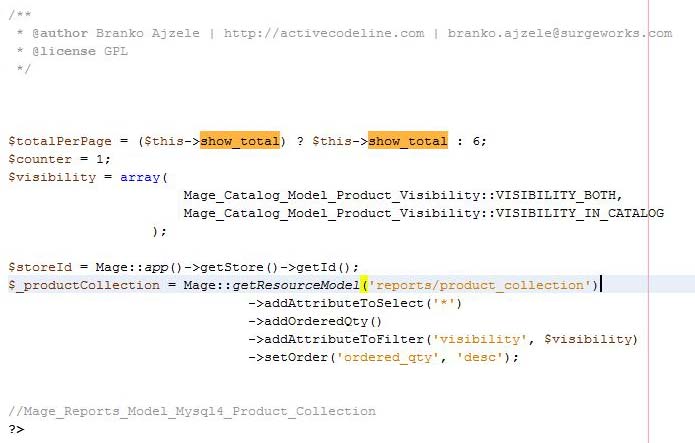
Therefore, the provided bestseller.phtml file provides the option of setting the number of products you wish to see listed.
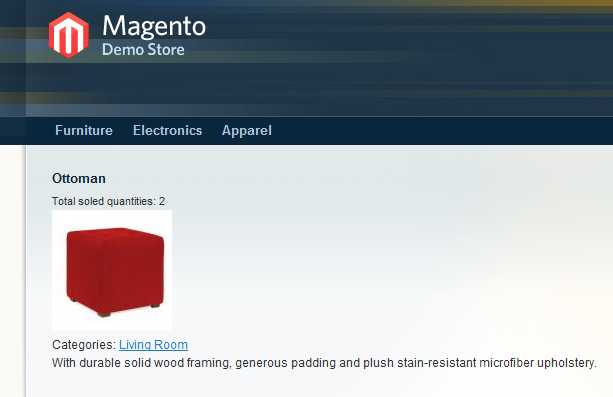
 
Here is the bestseller.phtml packed in bestseller.zip.


Method 2

Want to display the best selling products in your Magento store on the frontpage or anywhere else in your store? The best selling products means the products sold in highest quantity in Ascending order. This functionality is for some strange reason not included in Magento by default so we’ll explain how you can set it up yourself.
Main logic for this is we have to get the product list in ascending order by [order_qty]. So to get this type of list we have to apply
01$visibility array(
02Mage_Catalog_Model_Product_Visibility::VISIBILITY_BOTH,
03Mage_Catalog_Model_Product_Visibility::VISIBILITY_IN_CATALOG
04);
05 
06$_productCollection = Mage::getResourceModel('reports/product_collection')
07->addAttributeToSelect('*')
08->addOrderedQty()
09->addAttributeToFilter('visibility'$visibility)
10->setOrder('ordered_qty''desc');
By this way you get the complete list of product order accoding to order quantity for particular product.
Now to display that list in well formated manner you have to loop over the array of product as
01<?php foreach($_productCollection as $product): ?>
02 
03<?php
04$categories = null;
05foreach (explode(","$product->category_ids) as $catId){
06 
07//Mage_Catalog_Model_Category
08$cat = Mage::getModel('catalog/category')
09->setStoreId(Mage::app()->getStore()->getId())
10->load($catId);
11$catName $cat->getName();
12 
13$catLink $cat->getUrlPath();
14$categories .= '<a href="'.$catLink.'" title="'.$catName.'">'.$catName.'</a>&nbsp;&nbsp;';
15}
16 
17?>
18 
19<?php if($counter <= $totalPerPage): ?>
20 
21<?php $productUrl =  $product->getProductUrl() ?>
22<div class="best-sellh">
23<div class="wraptocenter">
24<a href="<?php echo $productUrl ?>" title="View <?php echo $product->name ?>">
25<img src="<?php echo $this->helper('catalog/image')->init($product, 'image')->resize(120); ?>" alt="Product image"  class="shadow" rel="black" />
26<!--        <img src="images/prodimg01.jpg" alt="chrysler-building" height="150"width="100" class="shadow" rel="black"/>-->
27</a>
28</div>
29 
30<div class="img_txt" >
31<span class="yellow-bg-text"><?php echo $product->name ?></span> <?=$catName?><br />
32<p class="price_txt">starts from <span class="price_hd"><?php echoMage::helper('core')->currency($product->price) ?> </span> </p>
33</div>
34 
35<br class="spacer" /></div>
36<!--
37<h4><?php echo $product->name ?></h4>
38</a>
39<small><?php echo $this->__('Total soled quantities') ?>: <?php echo(int)$product->ordered_qty ?></small><br />
40 
41<a href="<?php echo $productUrl ?>" title="View <?php echo $product->name ?>">
42<img src="<?php echo $this->helper('catalog/image')->init($product, 'image')->resize(120); ?>" alt="Product image"  />
43</a> <br />
44 
45<?php echo $this->__('Categories: ') ?><?php echo $categories ?>
46<p><?php echo $product->short_description ?></p>
47-->
48<?php endif$counter++; ?>
49<?php endforeach; ?>
In this way you can get the list of best selling product.
How to use this code:
  • Just create one phtml file as[highsold.phtml] in category/product directory
  • Paste this code in that file [highsold.phtml]
  • Now go to layout/cms.xml file and add following line of code
1<cms_page>
2 
3<reference name="content">
4 
5<strong> <block type="catalog/product" name="highsold" as="highsold"template="catalog/product/highsold.phtml" /></strong>
6<block type="cms/page" name="cms_page" />
7</reference>
8</cms_page>
By this way you are creating a block named as highsold
  • Now if you want to display the product list on home page.Just go to home.phtml file and ad following lines as<?php echo $this->getChildHtml(‘highsold’) ?>
  • next go to admin/cms/manage pages/ and select home pagel. In content text area add following lines as
1{{block type="core/template" name="default_home_page" template="cms/default/home.phtml" }}
Now you should see the products perfectly displayed on home page!

Method3

  1. Create a category to contain the featured products. Call it e.g. Featured” or “Home Page”.
  2. Set “Is Active” to No. That way, it won’t display in the catalog menu.
  3. After saving the category, please note what ID it gets. You can see it in the last part of the URL. If the URL ends withcatalog_category/edit/id/8/, the ID is 8. On later version, the ID is next to the category name.
  4. Add products for the home page to the new category.
  5. Edit the Home Page (CMS → Manage Pages → Home Page) and add the following content, where 8 should be replaced by your category ID:
{{block type="catalog/product_list" category_id="8" template="catalog/product/list.phtml"}}
If you want a view that is different from the category lists, you can copy and modify list.phtml and change the path above.

Method 4

To show bestseller at Top seller at home page.so that best products should come on home page.For that follow the following steps
Create a Bestseller.php file and put it here :
app/code/local/Mage/Catalog/Block/Product/Bestseller.php
?
1
2
3
4
5
6
7
8
9
10
11
12
13
14
15
16
17
class Mage_Catalog_Block_Product_Bestseller extends Mage_Catalog_Block_Product_Abstract{
    public function __construct(){
        parent::__construct();
        $storeId = Mage::app()->getStore()->getId();
        $products = Mage::getResourceModel('reports/product_collection')
            ->addOrderedQty()
            ->addAttributeToSelect('id')
            ->addAttributeToSelect(array('name', 'price', 'small_image'))
            ->setStoreId($storeId)
            ->addStoreFilter($storeId)
            ->setOrder('ordered_qty', 'desc'); // most best sellers on top
        Mage::getSingleton('catalog/product_status')->addVisibleFilterToCollection($products);
        Mage::getSingleton('catalog/product_visibility')->addVisibleInCatalogFilterToCollection($products);
        $products->setPageSize(3)->setCurPage(1);
        $this->setProductCollection($products);
    }
}

Create bestseller.phtml file and put it here :
app/design/frontend/yourtheme/template/catalog/product/bestseller.phtml

?
1
2
3
4
5
6
7
8
9
10
11
12
13
14
15
16
17
18
19
20
21
22
23
24
25
26
<?php if (($_products = $this->getProductCollection()) && $_products->getSize()): ?>
<div class="home-page-cntr">
<?php $i=0; foreach ($_products->getItems() as $_product): ?>
    <?php if ($i>5): continue; endif; ?>
<div class="home-page-item">
        <div class="home-page-img">
            <a href="<?php echo $_product->getProductUrl() ?>" title="<?php echo $this->htmlEscape($_product->getName()) ?>">
                 <img src="<?php echo $this->helper('catalog/image')->init($_product, 'small_image')->resize(65,65); ?>" alt="<?php echo $this->htmlEscape($_product->getName()) ?>"/>
            </a>
            <?php echo $_product->getDescription(); //also getShortDescription ?>
        </div>
        <div class="home-page-txt">
            <p><a class="product-name" href="<?php echo $_product->getProductUrl() ?>" title="<?php echo $this->htmlEscape($_product->getName()) ?>)"><?php echo $_product->getName() ?></a></p>
            <?php //echo $this->helper('review/product')->getSummaryHtml($_product, 'short') //product review link ?>
            <?php echo $this->getReviewsSummaryHtml($_product, false, true)?>
            <?php //echo $this->helper('catalog/product')->getPriceHtml($_product) ?>
            <?php echo $this->getPriceHtml($_product) ?>
            <?php echo $_product->getProductId(); ?>
            <?php if($_product->getevent_date()) {echo $_product->getevent_date();} ?>
</div>
</div>
<?php $i++; endforeach; ?>
<?php for($i;$i%5!=0;$i++): ?>
    <?php endfor ?>
</div>
<?php endif; ?>
now put this line where you want to view best selling products..
you can use through block or through XML also
{{block type="catalog/product_bestseller" template="catalog/product/bestseller.phtml"}}

<block type="catalog/product_bestseller" name="bestseller" template="catalog/product/bestseller.phtml">


By PHP with 5 comments

Magento: Display New Products on Home Page

If you've ever wanted to add new products in your Magento home page, it's fairly easy to implement. Go to "CMS" then "Manage Pages" and select "Home Page" from the list of pages. Now paste this code snippet to show products labeled as "new" on your front page:

 {{block type="catalog/product_new" name="home.catalog.product.new" alias="product_homepage" template="catalog/product/new.phtml"}}

 (Note that you must have some new products in your catalog for anything to show when you do this. This doesn't mean that you've recently added them; only products explicitly marked as new using "Set Product as New from Date" and "Set Product as New to Date" options in the "General" product information page in the admin tool will be shown.)

Method 2


 We have been using magento and have not found a single website that has a good help for magento so many problems. To start off showcasing new products on homepage using magento commerce was a problem when I was doing a project for a client. Getting new products in the front page is a key help that can increase sales of our products. This is already available in Magento but not easy to use.
To get it working it is very simple.
Here is the code
<reference name=”content”>
<block type=”catalog/product_new” name=”home.catalog.product.new” alias=”product_homepage” template=”catalog/product/new.phtml”>
<action method=”setProductsCount”><count>8</count></action>
<action method=”addPriceBlockType”>
<type>bundle</type>
<block>bundle/catalog_product_price</block>
<template>bundle/catalog/product/price.phtml</template>
</action>
</block>
</reference>
OK where to put this in?
  • Go to CMS > Pages > Home (this is your homepage it might be in a different name)
  • Choose it and there will be 4 tabs on the left. Page Information, Content, Design and Meta Data. Choose Design
  • Now paste it in Layout update XML
  • Click Save page at the top right.
So will this put your items on the homepage yet? No!
  • Go to Catalog > Manage Products and choose any product.
  • In the General Tab on the right there will be 2 options at the bottom Set Product as New from Date & Set Product as New to Date
  • Put in the desired timeline when your products are new. I would suggest 1 week if you update frequently and 1 month if you update rarely.

By PHP with 3 comments

Wednesday, May 16, 2012

PHP: Top 10 SEO URL Rewrite Tips using .htaccess

If you are looking for the examples of URL rewriting then this post might be useful for you. In this post, I’ve given five useful examples of URL rewriting using .htacess. If you don’t know something about url rewriting then please check my older post about url rewriting using .htaccess.
Now let’s look at the examples
1)Rewriting product.php?id=12 to product-12.html
It is a simple redirection in which .php extension is hidden from the browser’s address bar and dynamic url (containing “?” character) is converted into a static URL.
RewriteEngine on
RewriteRule ^product-([0-9]+)\.html$ product.php?id=$1
2) Rewriting product.php?id=12 to product/ipod-nano/12.html
SEO expert always suggest to display the main keyword in the URL. In the following URL rewriting technique you can display the name of the product in URL.
RewriteEngine on
RewriteRule ^product/([a-zA-Z0-9_-]+)/([0-9]+)\.html$ product.php?id=$2
3) Redirecting non www URL to www URL
If you type yahoo.com in browser it will be redirected to www.yahoo.com. If you want to do same with your website then put the following code to .htaccess file. What is benefit of this kind of redirection?? Please check the post about SEO friendly redirect (301) redirect in php and .htaccess.
RewriteEngine On
RewriteCond %{HTTP_HOST} ^optimaxwebsolutions\.com$
RewriteRule (.*) http://www.optimaxwebsolutions.com/$1 [R=301,L]
4) Rewriting yoursite.com/user.php?username=xyz to yoursite.com/xyz
Have you checked zorpia.com.If you type http://zorpia.com/roshanbh233 in browser you can see my profile over there. If you want to do the same kind of redirection i.e http://yoursite.com/xyz to http://yoursite.com/user.php?username=xyz then you can add the following code to the .htaccess file.
RewriteEngine On
RewriteRule ^([a-zA-Z0-9_-]+)$ user.php?username=$1
RewriteRule ^([a-zA-Z0-9_-]+)/$ user.php?username=$1
5) Redirecting the domain to a new subfolder of inside public_html.
Suppose the you’ve redeveloped your site and all the new development reside inside the “new” folder of inside root folder.Then the new development of the website can be accessed like “test.com/new”. Now moving these files to the root folder can be a hectic process so you can create the following code inside the .htaccess file and place it under the root folder of the website. In result, www.test.com point out to the files inside “new” folder.
RewriteEngine On
RewriteCond %{HTTP_HOST} ^test\.com$ [OR]
RewriteCond %{HTTP_HOST} ^www\.test\.com$
RewriteCond %{REQUEST_URI} !^/new/
RewriteRule (.*) /new/$1

By PHP with No comments

Basic String Functions for PHP Programmers


PHP Programmer should know the following string functions in PHP.
Note : In the below mentioned functions the parameters marked in < and > tags are mandatory and
the parameters marked in [< and >] are optional
substr()
This function returns the part of the string as an output.
Syntax :
substr(<string>,<start>,[<length>]);
Explanation :
String : It is mandatory parameter. The string from which the part is to be extracted is mentioned
here.
Start : The start in the string from which the characters are to be extracted
· Positive number - Start at a specified position in the string
· Negative number - Start at a specified position from the end of the string
· 0 - Start at the first character in string
Length : It is an optional parameter. It specifies the length of the string which is to be extracted.
· Positive number - The length to be returned from the start parameter
· Negative number - The length to be returned from the end of the string
Example 1:
<?php echo substr("Hello world",6); ?> //Returns world
Example 2 :
<?php echo substr("Hello world",6,4); ?> // Returns worl
Example 3 :
<?php echo substr("Hello world", -1); ?> // Returns d
Example 4:
<?php echo substr("Hello world", -3, -1); ?> // Returns rl
strlen()
This function returns the length of the string
Syntax :
strlen(<string>);
Explanation:
String : It is mandatory field. The string whose length is to be found out is mentioned here.
Example 1:
<?php echo strlen("Hello world"); ?> // Returns 11
trim()
This function removes the whitespaces from both start and the end of the string.
Syntax :
trim(<string>);
Explanation :
String : It is mandatory field. The string of which the whitespaces are to be removed is passed as
parameter.
Example 1:
<?php echo trim( " Hello World "); ?> // returns Hello World. If you go view source then you
can see that there are no whitespaces.
ltrim()
This function removes the whitespaces from the left part of the string.
Syntax :
ltrim(<string>);
Explanation :
String : It is mandatory field. The string of which the whitespaces are to be removed from left side is
passed as parameter.
Example 1:
<?php echo ltrim( " Hello World "); ?> // returns Hello World. If you go view source then you
can see that there are no whitespaces on left side but there are spaces on right side.
rtrim()
This function removes the whitespaces from the right part of the string.
Syntax :
rtrim(<string>);
Explanation :
String : It is mandatory field. The string of which the whitespaces are to be removed from right side
is passed as parameter.
Example 1:
<?php echo rtrim( " Hello World "); ?> // returns Hello World. If you go view source then you
can see that there are no whitespaces on right side but there are spaces on left side
strtolower()
This function converts the string to lower case
Syntax :
strtolower(<string>);
Explanation :
String : It is mandatory field. The string which is to be converted to lower case is passed here.
Example 1:
<?php echo strtolower("HELLO WORLD"); ?> // Returns hello world
strtoupper()
This function converts the string to upper case
Syntax :
strtoupper(<string>);
Explanation :
String : It is mandatory field. The string which is to be converted to upper case is passed here.
Example 1:
<?php echo strtoupper("hello world"); ?> // Returns HELLO WORLD
str_replace()
The str_replace() function replaces some characters with some other characters in a string.
This function works by the following rules:
· If the string to be searched is an array, it returns an array
· If the string to be searched is an array, find and replace is performed with every array
element
· If both find and replace are arrays, and replace has fewer elements than find, an empty
string will be used as replace
· If find is an array and replace is a string, the replace string will be used for every find value
Syntax :
str_replace(<search>,<replace>,<string/array>,[<count>]);
Explanation :
Search : It is mandatory . The string or value to be searched comes here.
Replace : It is mandatory. The string or value to be replaced comes here.
String/Array : It is mandatory. The string or array in which the value is to be found out comes here.
Count : It is optional. It counts the number of replacements to be done.
Example 1:
<?php echo str_replace("world","Peter","Hello world"); ?>// Returns Hello Peter
Example 2:
<?php
$arr = array("blue","red","green","yellow");
print_r(str_replace("red","pink",$arr,$i));
echo "Replacements: $i";
?>
/*
Output :
Array
(
[0] => blue
[1] => pink
[2] => green
[3] => yellow
)
Replacements: 1
*/
Example 3:
<?php
$phrase = "You should eat fruits, vegetables, and fiber every day.";
$healthy = array("fruits", "vegetables", "fiber");
$yummy = array("pizza", "beer", "ice cream");
$newphrase = str_replace($healthy, $yummy, $phrase);
?>
/*
Output :
You should eat pizza, beer, and ice cream every day
*/
strcmp()
The strcmp() function compares two strings.
This function returns:
· 0 - if the two strings are equal
· <0 - if string1 is less than string2
· >0 - if string1 is greater than string2
Syntax :
strcmp(<string1>,<string2>);
Explanation :
String1 : It is mandatory. The first string comes here.
String 2 : It is mandatory. The Second string comes here.
Example 1:
<?php echo strcmp("Hello world!","Hello world!"); ?> //Returns 0
Note: The strcmp() function is binary safe and case-sensitive. For case insensitive comparison you
can use strcasecmp(<string1>,<string2>); function. It is similar to strcmp() function.
explode()
This function breaks the string into array on the basis of delimiter passed.
Syntax:
explode(<delimeter>,<string>,[<limit>]);
Explanation:
Delimeter: It is mandatory field. It specifies where to break the string.
String: It is mandatory. It specifies the string to split.
Limit : It is optional. It specifies the maximum number of array elements to return.
Example 1:
<?php
$str = "Hello world. It's a beautiful day.";
print_r (explode(" ",$str));
?>
/* Output :
Array
(
[0] => Hello
[1] => world.
[2] => It's
[3] => a
[4] => beautiful
[5] => day.
)
*/
implode()
This function join array elements with a string on the basis of delimiter passed.
Syntax:
implode(<delim>,<array>);
Explanation:
Delimiter: It is mandatory field. It specifies what to put between the array elements. Default is "" (an
empty string).
Array: It is mandatory field. It specifies the array to join to a string.
Example 1:
<?php
$arr = array('Hello','World!','Beautiful','Day!');
echo implode(" ",$arr);
?>
/*
Output:
Hello World! Beautiful Day!
*/

By PHP with No comments

Get Category Details In Wordpress

How can we get the category details in Wp Blog.


<?php get_category_link$category_id ); ?>


If you want to get the category links


<?php
    // Get the ID of a given category
    $category_id = get_cat_ID( 'Category Name' );

    // Get the URL of this category
    $category_link = get_category_link( $category_id );
?>

<!-- Print a link to this category -->
<a href="<?php echo esc_url( $category_link ); ?>" title="Category Name">Category Name</a>

separator (string) Text or character to display between each category link. The default is to place the links in an unordered list. parents (string) How to display links that reside in child (sub) categories. Options are: 'multiple' - Display separate links to parent and child categories, exhibiting "parent/child" relationship. 'single' - Display link to child category only, with link text exhibiting "parent/child" relationship. Note: Default is a link to the child category, with no relationship exhibited. post_id (Integer) Post ID to retrieve categories. The default value is false (the current post). This usage lists categories with a space as the separator.
<p>Categories: <?php the_category(' '); ?></p>
Separated by Comma Displays links to categories, each category separated by a comma (if more than one).
<p>This post is in: <?php the_category(', '); ?></p>
Separated by Arrow Displays links to categories with an arrow (>) separating the categories. (Note: Take care when using this, since some viewers may interpret a category following a > as a subcategory of the one preceding it.)
<p>Categories: <?php the_category(' &gt; '); ?></p>
Separated by a Bullet Displays links to categories with a bullet (•) separating the categories.
<p>Post Categories: <?php the_category(' &bull; '); ?></p>

By PHP with No comments

    • Popular
    • Categories
    • Archives